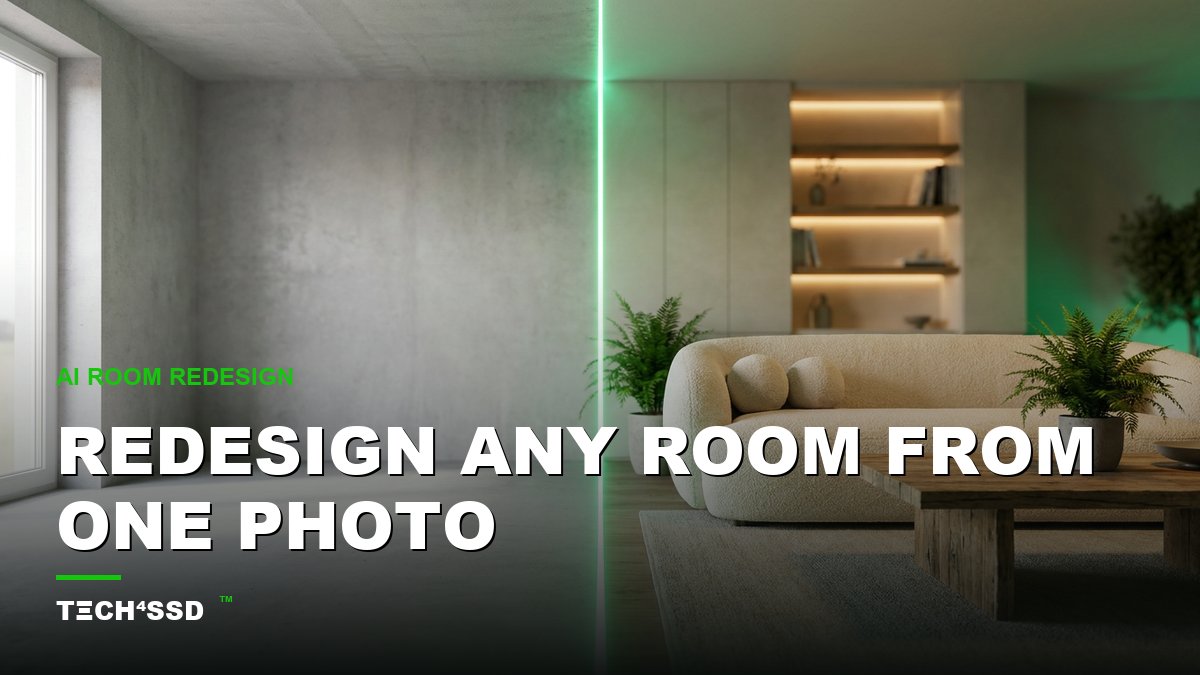
What if one quick photo of your living room could come back to you ten minutes later as a warm, magazine-worthy designer space — same windows, same layout, just transformed? No mood boards. No Pinterest rabbit holes. No $2,000 interior-design consult. Just AI. 🔥 In 2026 this is one of the most-shared practical AI tricks out there, and you can do it tonight for free.
Whether you're dreaming up a real makeover, staging a rental, or want a fun before/after to post, redesigning a room from a single photo is shockingly easy. Let's restyle your space.
What You'll Need 🎯
- One clear photo of your room — well-lit, taken straight-on, showing as much of the space as possible.
- A free AI image tool — Google Gemini ("Nano Banana"), ChatGPT's image mode, or a dedicated AI interior-design app. Free tier is plenty.
- 5–10 minutes. That's the whole budget. No design skills required.
Step 1: Snap a Clean Photo of the Room 📸
Everything is built off this one photo, so make it count. Stand back, hold the phone level, and shoot the room straight-on — not at a weird angle. Turn on the lights or shoot during the day so the space is bright and even. The more of the room the AI can see, the better it understands what to restyle.
💡 Pro Tip: A slightly empty or cluttered room is fine — the AI can clear it out and restyle it. Just make sure the walls, windows and floor are clearly visible.
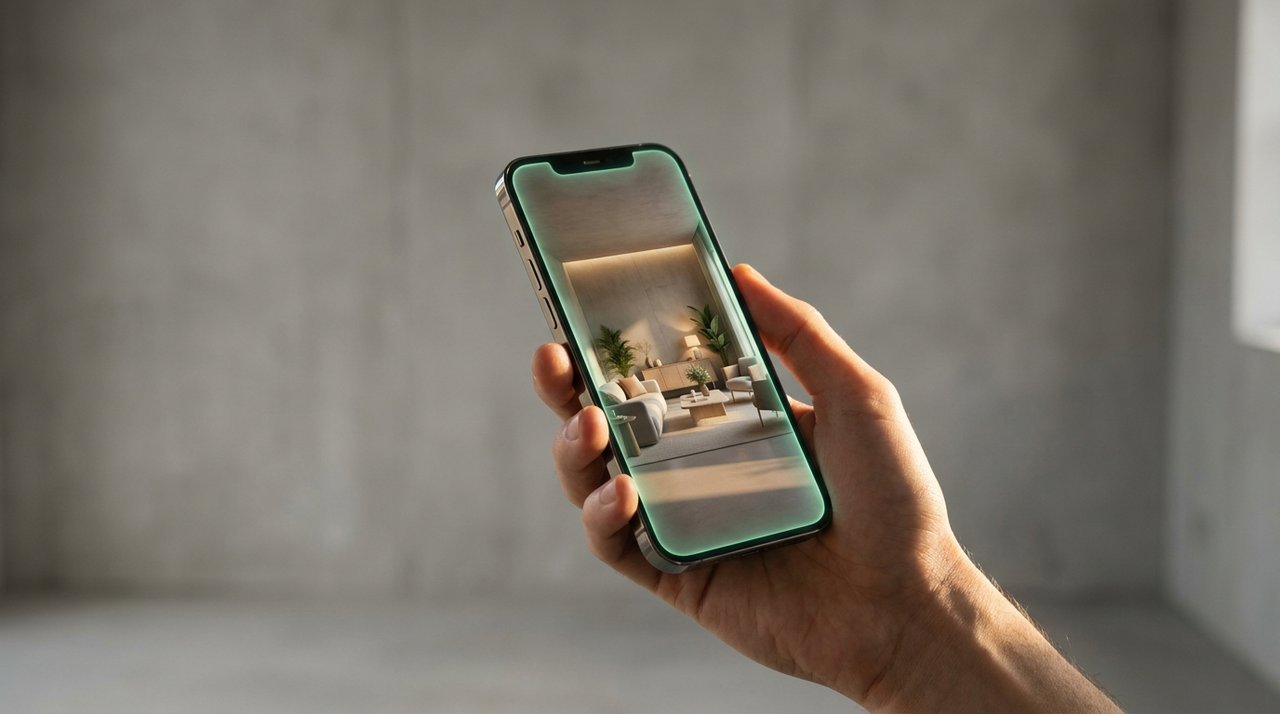
One plain photo in — a fully styled designer room out, in seconds.
Step 2: Open Your AI Tool & Upload the Photo
Open your image tool (Google Gemini's image mode is free and great for this), start a new image, and attach your room photo as a reference. This tells the AI: "keep this exact room — just redecorate it." That reference is what keeps your real windows, walls and proportions intact instead of inventing a random room.
If your tool has an "edit with reference" or "use this image" option, that's the one you want.
Step 3: Write the Restyle Prompt ✨
This is where the magic happens. Describe the look you want like you're briefing a designer — style, materials, lighting, mood — and tell it to keep your real room. Here's a plug-and-play template:
"Redesign this exact room in a warm Japandi style. Keep the same layout, windows and proportions. Add natural wood tones, leafy plants, soft neutral textiles and cozy warm lighting. Photorealistic interior photography, magazine quality."
💡 Pro Tip: Always include "keep the same layout and windows." That one line is what locks your real room in place so the result actually looks like your space — not a stock photo.
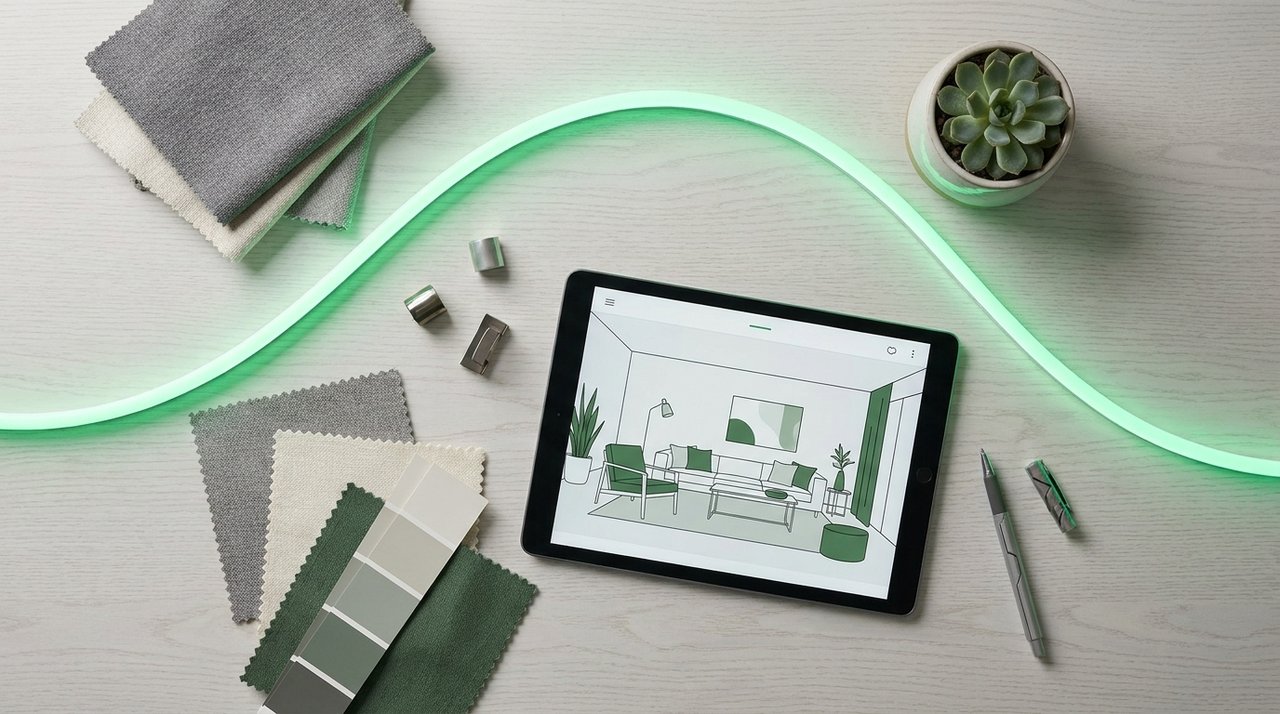
Use the AI render as a real mood board — match paint, textiles and finishes to it.
Step 4: Try Every Style (Swap One Word) 🎨
Here's the fun part. Keep the photo attached, keep the same base prompt, and just swap the style word. Run it as modern, then minimalist, then boho, then industrial, then coastal — and watch your one room reimagined five different ways in a couple of minutes.
Generate a few versions of each style too. Some renders nail it; some go a little wild. Volume is free, so keep what you love and toss the rest.
Step 5: Use the Results in Real Life
Pick your favorite render and treat it like a shopping list. Note the colors, the wood tones, the kind of rug and lighting — then match real, affordable pieces to it. Save the before/after side by side; it's both a planning tool and a genuinely satisfying thing to share.
Use It, Make It Pay, Go Viral 💰
The exact skill you just learned has real value attached to it:
- Use it: plan your own makeover with zero guesswork, or mock up a rental before you commit to furniture.
- Make it pay: offer "see your room redesigned in 5 styles" as a $15–$50 gig for homeowners, landlords, and realtors staging listings.
- Go viral: post the before/after as a reel — "I redesigned my room with AI for free" is one of the most-shared formats of 2026 for a reason.
Key Takeaways
- One clear, straight-on room photo + a reference-image AI tool = a full redesign in minutes.
- Attach your photo as a reference so the AI restyles your real room, not a random one.
- Always add "keep the same layout and windows" to lock the space in place.
- Swap a single style word to see modern, boho, minimalist, industrial and more.
- It's inspiration, not exact product matching — use it to plan, sell, or share.
📩 Want the freshest AI trends every week?
Subscribe to Tech4SSD — practical AI tools and trends, explained for everyone. Free. Subscribe →
Frequently Asked Questions
Is this really free?
Yes. The free tiers of tools like Google Gemini are enough to redesign a room several times over. Paid plans give you more generations and higher resolution, but you can absolutely start at $0.
Will it match my actual room?
Closely, if you attach your photo as a reference and add "keep the same layout and windows." The walls, windows and proportions stay; the AI just redecorates around them.
Can I actually shop the look?
Treat the render as inspiration, not a catalog. It won't link to exact products, but you can match the colors, materials and furniture types to real pieces you can buy.
Does it work for outdoor spaces?
Yes — patios, balconies and gardens work the same way. Snap a clear photo, attach it, and prompt the style you want (e.g. "cozy boho balcony with plants and string lights").
Final Word
Redesigning a room used to mean a designer, a budget, and weeks of "maybe this, maybe that." Now it's one photo and a few minutes of swapping style words. Whether you use it to plan a real makeover, sell quick redesigns, or just post a jaw-dropping before/after, you've got a genuinely useful skill in your pocket. 🚀
Now it's your turn — grab a photo of the room you're sitting in and see what AI does with it.
AI tools and features change fast — verify current options before relying on them. — Tech4SSD Editorial
Discussion
Have a question or something to add?
Join the discussion on Blogger