
Windows Search Performance: Hey there, fellow creators and busy bees! Ever felt like your Windows search was playing hide-and-seek with your files? You're not alone. But guess what? Microsoft is rolling out some seriously cool updates to Windows Search Performance that are going to change the game, especially for power users like you. We're talking faster, smarter, and way more integrated search capabilities that'll make finding what you need a breeze. 🌬️
This isn't just about finding files quicker; it's about transforming how you interact with your digital workspace. We'll dive into the nitty-gritty of these new features, from lightning-fast File Explorer searches to AI-powered actions right where you need them. Get ready to reclaim your precious time and boost your productivity!
Advertisement
File Explorer Search Gets a Turbo Boost 🚀
One of the biggest headaches for Windows users has been the inconsistent and often sluggish search within File Explorer, especially when starting from 'This PC'. Good news! Microsoft is making this search indexer-based, bringing it up to speed with the already zippy File Explorer Home search. This means when you search for a file on your local drives, it'll be significantly faster and more reliable. No more waiting around while Windows rummages through every folder individually.
This improvement isn't just about speed; it's about consistency. You'll get the same quick, comprehensive results whether you start your search from the File Explorer Home or directly from 'This PC'. It's a small change with a huge impact on your daily workflow, cutting down those frustrating moments of staring at a loading bar. Think of all the time you'll save!
Crystal Clear Search Results 🔍
Have you ever searched for something and gotten a bunch of results without a clear idea of where they came from? Windows Search is fixing that. The new updates provide much clearer indications of a result's origin. Whether it's an app, a setting, a local file, a web result, or even something from the Microsoft Store, you'll know at a glance.
This clarity helps you quickly identify and select the correct result, reducing guesswork and accidental clicks. On the File Explorer search results page, key file information like the name, location, and date are now displayed in a consistent, easy-to-scan layout. This means less squinting and more efficient navigation through your search outcomes. It's all about making your digital life simpler.
AI Actions: Your New Productivity Sidekick 🤖
Here's where things get really exciting for creators and power users! Microsoft is integrating AI actions directly into File Explorer and Microsoft 365. Imagine right-clicking an image and instantly being able to blur its background, erase objects, or remove the background entirely, all without opening a separate app. That's the power of these new AI actions.
For those working with documents, Microsoft 365 AI actions will allow for quick document summarization directly from the context menu. This means you can get the gist of a long report or article in seconds, saving you valuable time. These intelligent shortcuts are designed to streamline your creative and professional tasks, making complex edits and analyses accessible with just a few clicks. It's like having a mini-AI assistant built right into your operating system. Learn more about what's new in Windows 11, version 25H2.
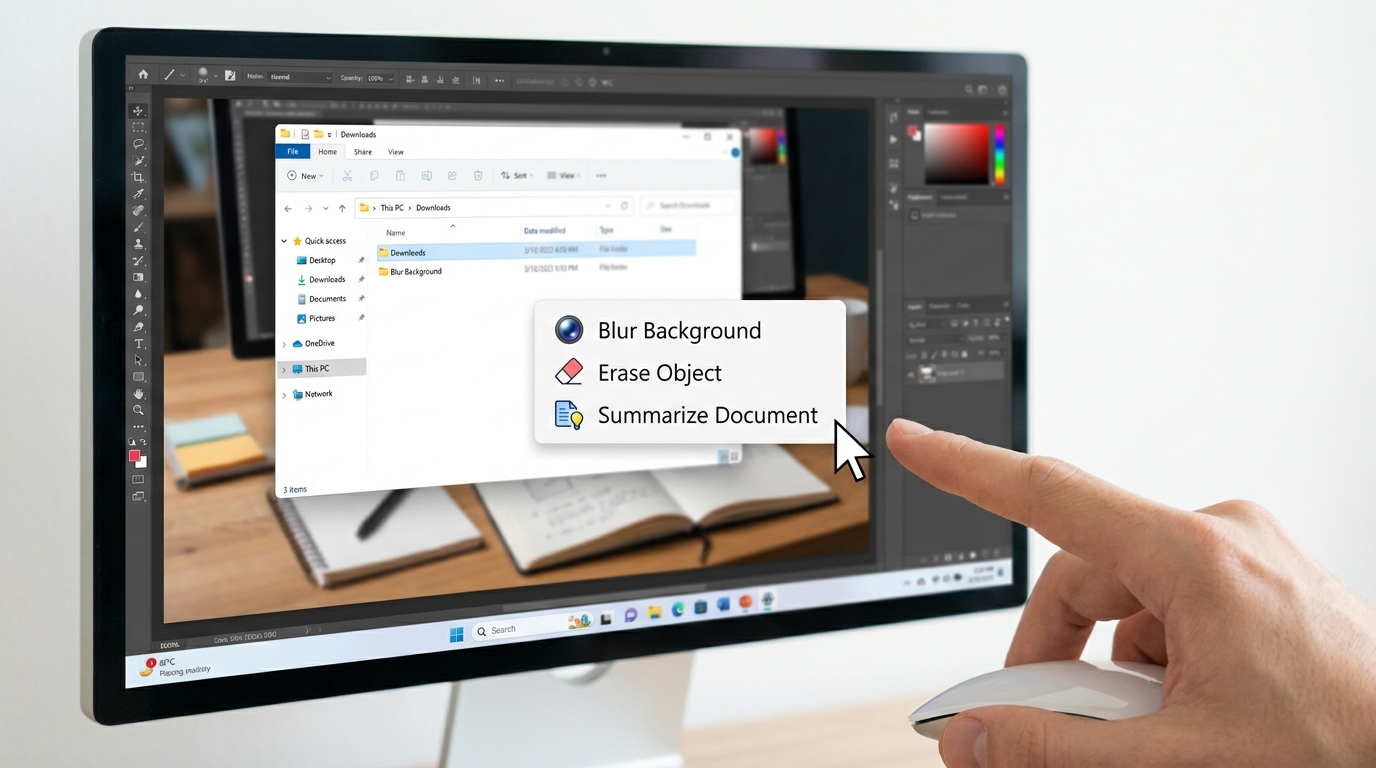
AI actions bring powerful editing and summarization tools right to your fingertips in File Explorer.
Understanding Search Indexing Modes 💾
To get the best out of Windows Search, it's helpful to understand how indexing works. Windows offers two main modes: 'Classic' and 'Enhanced'. 'Classic' indexing focuses on common user folders like Documents, Pictures, and Desktop. It's a good default if you mostly work within these areas.
However, for power users who store files across multiple drives or non-standard locations, 'Enhanced' indexing is your best friend. This mode indexes your entire PC, ensuring comprehensive results no matter where your files are hiding. Crucially, all semantic indexing data is stored locally on your machine, so your privacy and data security remain intact. You can adjust these settings in Windows Search settings to tailor it to your needs. Check out Microsoft's guide on search indexing.
Advertisement
Respecting Your Policies and Phased Rollouts 🛡️
For our IT professional friends and those managing commercial environments, rest assured: the improved Windows Search in version 25H2 will respect existing search policies. This means your carefully configured settings for search behavior and data access won't be overridden by these new features. It's designed to integrate seamlessly into your established infrastructure.
These updates are being rolled out to commercial users via a Controlled Feature Rollout (CFR). This phased approach ensures stability and allows organizations to prepare for the changes. It's Microsoft's way of ensuring that these powerful new features are introduced smoothly, without disrupting critical workflows. This thoughtful deployment strategy is a win for everyone involved.
Why This Matters for Your Workflow 💡
For Tech4SSD's audience – the builders, developers, students, and small business owners – these updates are a game-changer. Imagine spending less time hunting for that crucial code snippet, that specific client document, or that perfect image. Faster, more accurate file retrieval directly translates to more time spent creating and innovating.
The integration of AI-powered quick actions directly into File Explorer means you can perform advanced tasks without breaking your flow. Need to quickly prep an image for a presentation? Done. Want a summary of a research paper without opening a PDF reader? Easy. These enhancements streamline your workflows, reduce context switching, and empower you to manage your content and assets more efficiently than ever before. It's about making your Windows experience truly work for you. These features are appearing in Windows 11 Insider builds like 26340.9482.

Boost your efficiency with faster search and integrated AI actions, making your workflow smoother.
💡 Pro Tip: If you're a power user with files scattered across multiple drives, switch your Windows Search indexing to 'Enhanced' mode for the most comprehensive and speedy results. You'll find this option in your Windows Search settings!
Key Takeaways
- File Explorer search from 'This PC' is now indexer-based, making local file retrieval significantly faster and more consistent.
- Windows Search results now clearly indicate their origin (app, file, web), improving accuracy and selection.
- New AI actions in File Explorer allow for quick image edits (background blur/removal, object erase) and document summarization in Microsoft 365.
- 'Enhanced' search indexing indexes your entire PC for comprehensive results, while 'Classic' focuses on common folders; all data is stored locally.
- These Windows 11 version 25H2 updates respect existing search policies and are rolling out gradually to commercial users.
Related on Tech4SSD 🔗
📩 Want the freshest AI trends every week?
Subscribe to Tech4SSD — practical AI tools and trends, explained for everyone. Free. Subscribe →
Advertisement
Frequently Asked Questions
What's the biggest change for File Explorer search?
The biggest change is that File Explorer search from 'This PC' is now indexer-based, meaning it uses the same fast and reliable indexing system as File Explorer Home. This dramatically improves speed and consistency when searching for local files.
How do AI actions in File Explorer work?
AI actions are integrated into the context menu when you right-click on files. For images, you can perform tasks like blurring backgrounds or removing objects. For Microsoft 365 documents, you'll be able to summarize content directly, all without opening separate applications.
Should I use 'Classic' or 'Enhanced' search indexing?
For most users, 'Classic' indexing is fine. However, if you're a power user with files stored across many different locations or drives, 'Enhanced' indexing is recommended. It indexes your entire PC for the most comprehensive search results. You can change this in Windows Search settings.
Are these new features available now?
These features are appearing in recent Windows Insider builds (like version 25H2) and are being rolled out gradually. Commercial users will receive them via a Controlled Feature Rollout (CFR) to ensure smooth adoption.
Final Word
The latest updates to Windows Search are more than just minor tweaks; they represent a significant step forward in making your operating system a more intelligent and efficient partner. By focusing on speed, clarity, and integrating AI right where you need it, Microsoft is empowering you to spend less time searching and more time doing what you do best.
Whether you're a student juggling research papers, a creator editing images, or a small business owner managing documents, these enhancements are designed to streamline your digital life. Embrace these new capabilities and watch your productivity soar! ✨
Sources & Further Reading
- Windows 11 Insider Experimental Preview Build 26340.9482 - Windows Insider Program | Microsoft Learn
- Search indexing in Windows | Microsoft Support
- https://learn.microsoft.com/en-us/windows-insider/release-notes/release-preview-24h2-25h2/build-26100-9267-26200-9267
- Release Preview Build 28000.3079 - Windows Insider Program | Microsoft Learn
- Windows 11 Insider Experimental Preview Build 26340.9354 - Windows Insider Program | Microsoft Learn
- Release Preview Build 26100.9539/26200.9539/26300.9539 - Windows Insider Program | Microsoft Learn
- Win+R key | not able to retrieve frequently used commands as I used to. Lets say, everytime I need to type 'prefetch' - Microsoft Q&A
- What's new in Windows 11, version 25H2 for IT pros
- CVE-2026-69600 - Security Update Guide - Microsoft - Microsoft Windows Search Component Elevation of Privilege Vulnerability
- Windows 11 File Explorer EXTREMELY Slow Unless ...
AI tools and features change fast — verify current options before relying on them. — Tech4SSD Editorial
Discussion
Have a question or something to add?
Join the discussion on Blogger