GPT-6 Intelligent UI: Hey there, creators and small business owners! 👋 Ever wished ChatGPT could do more than just text? Well, get ready, because GPT-6 Intelligent UI is here to blow your mind. OpenAI has just rolled out a game-changing feature that lets ChatGPT respond with interactive charts, diagrams, maps, buttons, and even mini-applications right inside your conversation. This isn't just about getting answers; it's about getting dynamic, usable tools that make your life easier and your projects sharper.
No more sifting through walls of text to visualize data or plan a trip. With Intelligent UI, ChatGPT chooses the best way to show you information, turning complex data into clear, interactive experiences. We're talking about a major upgrade to how you interact with AI, moving beyond simple chat to a truly integrated, interactive platform. Ready to see how you can turn ChatGPT into your personal app builder? Let's dive in! 👇
Advertisement
What is GPT-6 Intelligent UI, Anyway? 🤯
Think of it this way: ChatGPT used to be like a super-smart friend who could only communicate by writing notes. Now, with GPT-6 Intelligent UI, that friend can also draw you a picture, show you a map, or even hand you a working calculator! OpenAI has launched this incredible feature, transforming ChatGPT from a purely text-based conversational agent into a dynamic, interactive platform. It's a huge leap forward in human-AI interaction, making AI responses not just informative, but also engaging and incredibly useful.
This new capability means ChatGPT can generate responses that include a mix of text, visuals, and interactive elements. Imagine asking for a budget breakdown and getting an interactive pie chart, or planning a road trip and seeing a live, tappable map. It's all powered by a smart library of native, streamable components and a compiler that renders the interface as the AI generates it. This means a fast, familiar experience whether you're on your phone or desktop.
You don't need to switch anything on. ChatGPT decides when an interactive answer helps more than text. It's all about making your experience smoother and more intuitive. This is a game-changer for anyone who uses ChatGPT to brainstorm, plan, or analyze.
Getting Started with GPT-6 Intelligent UI 🚀
Good news! OpenAI started rolling out GPT-6 with Intelligent UI on October 7, 2026, for Plus, Pro, Business, and Enterprise users, and on October 8, 2026, for Free and Go users, worldwide. So, chances are, you already have access! Just make sure your ChatGPT app is updated (or open chatgpt.com in your browser) and start a new chat.
When you use a paid plan, you'll be running on GPT-6 Sol, while free users get GPT-6 Luna. The beauty of this system is that you don't have to toggle any settings. ChatGPT's AI brain automatically figures out when an interactive answer would be more helpful than a plain text one. It's designed to be seamless and intuitive, letting you focus on your task, not on configuring the AI. This means you can jump right in and start experimenting with these powerful new features.
Prompt 1: Ask for a Diagram You Can Play With 📊
Want to understand how something works in a truly visual way? Just ask! Instead of a dry explanation, ChatGPT can now build interactive diagrams that let you explore concepts firsthand. This is perfect for learning, teaching, or simply demystifying complex processes.
In my own test, I asked ChatGPT to explain how an airplane wing generates lift. It gave me a concise two-sentence explanation, then immediately followed up with an interactive airflow diagram. This diagram featured a slider that let me adjust the wing's angle. As I moved the slider, the airflow patterns, pressure labels, and the lift arrow updated in real-time. Push the angle too far, and it even showed the wing stalling! It's like having a mini-simulator right in your chat.
Try it yourself! Ask about anything physical – from how a car engine works to the phases of the moon. The prompt is as simple as asking a 'how does it work' question about a physical mechanism. ChatGPT will do the rest, turning your query into a dynamic, explorable visual.
Prompt 2: Plan a Trip and Get a Real Map 🗺️
Forget juggling between ChatGPT and a mapping app. Now, you can plan your adventures and get an interactive map directly within your conversation! This is a huge time-saver for anyone planning travel, hikes, or even just a day out.
I tested this by asking ChatGPT to plan a multi-day hike. It researched the route, asked one clarifying question about my preferences, and then returned a day-by-day itinerary. But here's the cool part: it also generated an interactive trail map (for the Lukla to Phakding trek, built from OpenStreetMap data!). This map had tappable village stops, distances, and altitude information. You can zoom, pan, and click on points of interest, all without leaving ChatGPT.
To try this, simply ask for a trip plan and make sure to mention that you'd like a map. For example, you could say: "Plan a 3-day road trip from Seattle to Portland, and please include an interactive map." Swap in your own destination and number of days, and watch ChatGPT become your personal travel agent and cartographer! 🌍
Prompt 3: Build a Working Tool Right in the Chat 🛠️
This is where GPT-6 Intelligent UI truly shines for productivity. Instead of just explaining how a tool works, ChatGPT can now *build* that tool for you, right in the chat window! This opens up endless possibilities for quick calculations, data entry, and small utility apps without needing to open another program.
I asked ChatGPT to create a bill splitter. What it returned was a fully functional mini-application with input fields for the total bill, currency, and tip percentage. As I typed in the total and tip, and then entered each friend's share, the numbers updated instantly. It even included a clever double-check to ensure all the shares, including tips and rounding, added up exactly to the total bill. This is incredibly useful for splitting restaurant tabs or group expenses on the fly.
To get your own working tool, simply ask ChatGPT to make one instead of explaining it. Try: "Create a simple savings calculator with a slider for interest rate" or "Build a mini-app to convert currencies." The potential here for small business owners and students is enormous – think quick calculators for project budgets, simple data entry forms, or even interactive quizzes.
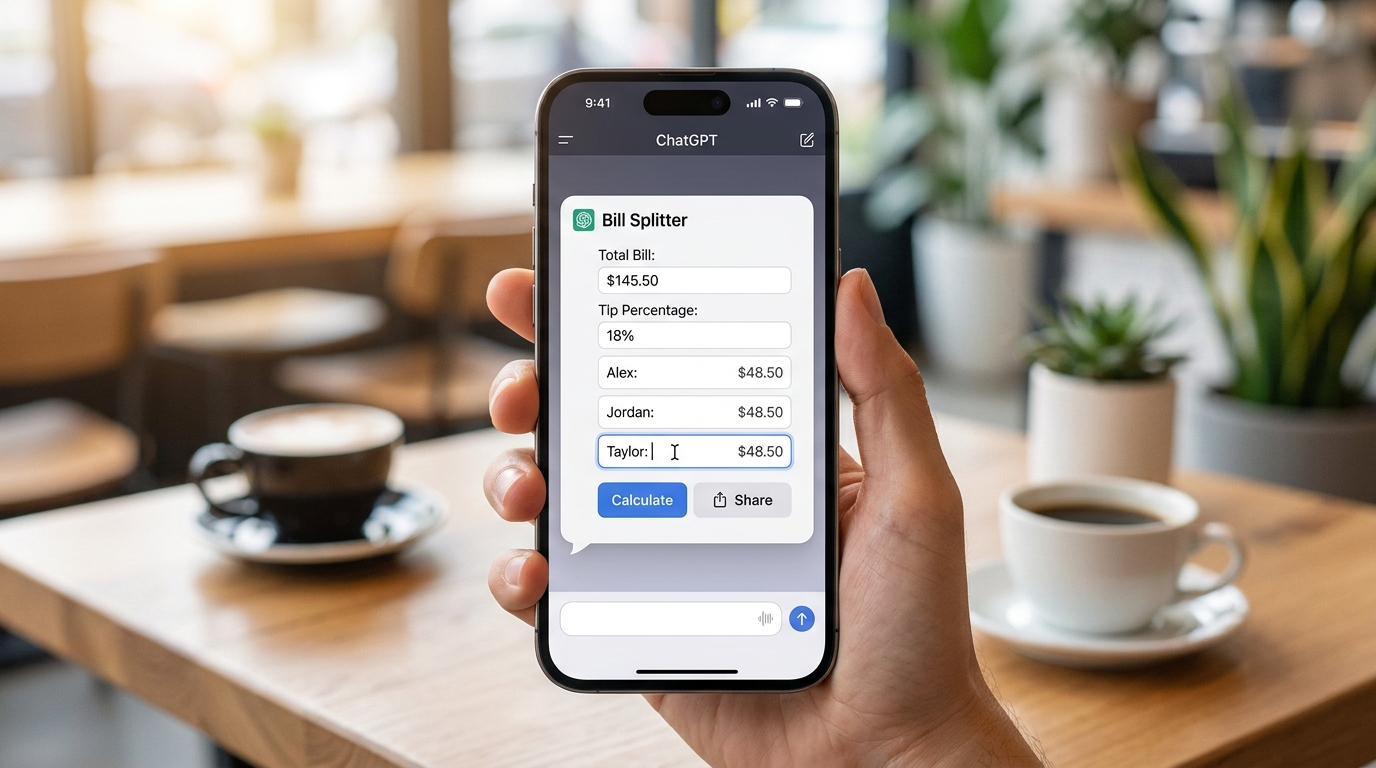
ChatGPT's Intelligent UI can generate functional mini-applications like this bill splitter directly in your chat.
Advertisement
Prompt 4: Try OpenAI's Own Launch Examples ✨
OpenAI showcased some fantastic examples of GPT-6 Intelligent UI during its launch. These prompts are great for seeing the breadth of what the system can do and for inspiring your own creative uses. They demonstrate different types of interactive answers, from data visualization to playable games.
Here are a few of the prompts OpenAI used to demonstrate Intelligent UI. Try pasting them one at a time into your ChatGPT chat:
These examples show the versatility of GPT-6 Intelligent UI, from practical financial tools to pure entertainment. They are a great starting point for understanding the different interactive components ChatGPT can generate.
- Savings Calculator: Ask for a savings calculator that lets you adjust interest rates and contributions with sliders.
- Retro Game Console: Request a playable retro game console with classic games like Snake, Breakout, or Pong.
- Itemized Bill Splitter: Prompt for an itemized bill splitter, styled like a clipboard, to manage group expenses.
- Intuition-Building Chart: Ask for a chart that helps build intuition about statistical concepts, perhaps with a sample-size slider.
Prompt 5: Adjusting Visuals to Your Preference ⚙️
While the new Intelligent UI is incredibly powerful, we all have different preferences for how we interact with AI. Maybe you prefer classic text answers for certain tasks, or perhaps you're in a situation where a visual response isn't ideal. OpenAI has thought of this, giving you control over the visual output.
Intelligent UI is adjustable! If you find ChatGPT is using visuals more often than you'd like, you can reduce how frequently it uses them in your ChatGPT settings. This allows you to tailor your AI experience to your workflow. You can always ask for a chart, map, or tool specifically, even if you've reduced the general frequency of visuals. This flexibility ensures that you're always in control of your AI interaction, getting the best of both worlds: dynamic visuals when you need them, and clear text when you prefer it.

You can fine-tune how often ChatGPT uses interactive visuals in its settings.
Why This Matters for You, the Creator & Business Owner 💡
This isn't just a cool tech demo; it's a fundamental shift in how we can leverage AI. For everyday creators, students, and small-business owners like you, GPT-6 Intelligent UI opens up a world of new possibilities. Imagine streamlining your data visualization, creating quick prototypes for mini-apps, or simply understanding complex information more intuitively. This means less time wrestling with tools and more time focusing on your core work.
For example, a small business owner can quickly generate an interactive sales report, a student can get a dynamic diagram to ace their science project, or a content creator can visualize audience demographics without needing specialized software. This development signifies a major step towards making sophisticated AI tools accessible and actionable for everyone. It's about empowering you to do more, faster, and with greater clarity. Dive in and explore how GPT-6 Intelligent UI can transform your daily tasks! 🌟
Complete step-by-step walkthrough
Original TECH4SSD tutorial and reference media
Tools
- ChatGPT (GPT-6)
- ChatGPT mobile app or chatgpt.com
Before you begin
- A ChatGPT account (Free, Go, Plus, Pro, Business or Enterprise)
- The latest ChatGPT app, or chatgpt.com in your browser
1. Get GPT-6 with Intelligent UI
OpenAI started rolling out GPT-6 with Intelligent UI on October 7, 2026 for Plus, Pro, Business and Enterprise, and on October 8, 2026 for Free and Go users, worldwide. Update the ChatGPT app (or open chatgpt.com) and start a new chat in the Chat tab. Paid plans get GPT-6 Sol; free users get GPT-6 Luna. You don't need to switch anything on: ChatGPT decides when an interactive answer helps more than text.
Requirement: If you still only get text answers, the rollout may not have reached your account yet. Try again later the same day.
- App updated or chatgpt.com open
- New chat started
- Model shows GPT-6 (Sol or Luna)
2. Ask for a diagram you can play with
Ask a 'how does it work' question about something physical. In my test, ChatGPT explained lift in two sentences, then built an interactive airflow diagram with a wing-angle slider. Drag the slider and the airflow, pressure labels and lift arrow update live; push the angle too far and it shows the wing stalling.
Exact prompt
Show me how an airplane wing creates lift3. Plan a trip and get a real map
Ask for a trip plan and mention that you want a map. ChatGPT researched the route, asked one clarifying question, then returned a day-by-day plan plus an interactive trail map (Lukla to Phakding, built from OpenStreetMap data) with tappable village stops, distances and altitude. Swap in your own destination and number of days.
Exact prompt
Plan a 2-day hike near Mount Everest with a mapTip: Always confirm real trail conditions, permits and weather locally. The map is a planning aid.
4. Build a working tool right in the chat
Ask ChatGPT to make a tool instead of explaining one. It built a working bill splitter with fields for the total, currency, tip percentage and split method, and every friend's share updates as you type. It even double-checks that the shares add up exactly, including tips and rounding.
Exact prompt
Make me a bill splitter for 4 friends5. Try OpenAI's own launch prompts
These are the prompts OpenAI used to show Intelligent UI at launch. Each one returns a different kind of interactive answer: a savings calculator with sliders, a playable retro game console (Snake, Breakout and Pong), an itemized bill splitter styled like a clipboard, and an intuition-building chart with a sample-size slider. Paste them one at a time.
Exact prompt
Show me how does a roth IRA work

Create a retro interactive gaming console that I can play

Bill splitter for a party of five based on what we ate, can you make it look like a clipboard

Help me understand the central limit theorem intuitively
Tip: Prompts and demos credit: OpenAI, 'GPT-6 and Intelligent UI for everyone' (openai.com/index/gpt-6-for-everyone).
6. Prefer plain text? Turn the visuals down
Intelligent UI is adjustable. If you want classic text answers more often, reduce how frequently ChatGPT uses visuals in its settings. You can still ask for a chart, map or tool any time you want one.
💡 Pro Tip: Always specify your desired output format (e.g., 'show me a chart', 'create a map', 'build a calculator') to guide GPT-6 Intelligent UI to the best interactive response.
Key Takeaways
- GPT-6 Intelligent UI transforms ChatGPT into an interactive platform, generating charts, maps, buttons, and mini-apps.
- You can now get dynamic visuals and functional tools directly within your chat conversations, moving beyond text-only responses.
- Simple prompts can yield interactive diagrams, real-time maps for trip planning, and working calculators or bill splitters.
- OpenAI's launch examples include interactive savings calculators, retro games, and intuition-building charts.
- You can adjust the frequency of interactive visuals in ChatGPT settings to suit your personal preference.
Related on Tech4SSD 🔗
📩 Want the freshest AI trends every week?
Subscribe to Tech4SSD — practical AI tools and trends, explained for everyone. Free. Subscribe →
Advertisement
Frequently Asked Questions
Do I need a paid ChatGPT subscription to use GPT-6 Intelligent UI?
No, OpenAI has rolled out GPT-6 with Intelligent UI to both paid (Plus, Pro, Business, Enterprise) and free users. Paid plans get GPT-6 Sol, while free users get GPT-6 Luna.
How do I turn on the Intelligent UI feature?
You don't need to manually turn it on. ChatGPT automatically decides when an interactive answer (like a chart or map) would be more helpful than a text-only response. You can, however, adjust the frequency of visuals in your settings.
Can I save the mini-applications or charts generated by ChatGPT?
Currently, the interactive elements are generated within the chat session. While you can often screenshot or copy data, they are not typically saved as standalone applications outside of ChatGPT. For developers, OpenAI offers an Apps SDK to build more persistent solutions.
What kind of interactive elements can GPT-6 Intelligent UI create?
It can create interactive charts (bar, line, pie, scatter), diagrams with sliders, maps with tappable points, clickable buttons, forms, and even mini-applications like calculators, bill splitters, or simple games.
Final Word
The arrival of GPT-6 Intelligent UI marks a significant milestone in AI interaction. It's no longer just about getting information; it's about experiencing it, manipulating it, and using it in dynamic, practical ways. This empowers you to transform your ideas into actionable tools and visualizations with unprecedented ease.
So, go ahead, update your ChatGPT app, and start experimenting with these prompts. You're not just chatting with an AI anymore; you're building, creating, and interacting with a whole new kind of intelligence. The future of AI is interactive, and you're at the forefront! ✨
Sources & Further Reading
- GPT-6 and Intelligent UI for everyone | OpenAI
- ChatGPT release notes
- GPT-6 and Intelligent UI in ChatGPT - Announcements
- ChatGPT — Release Notes | OpenAI Help Center
- Build your ChatGPT UI – Apps SDK | OpenAI Developers
- Hex turns complex analysis into visual reports with GPT‑6 Astra | OpenAI
- Introducing apps in ChatGPT and the new Apps SDK
- Proposal: An Autonomous Visualization Router for ChatGPT - ChatGPT / Feature requests - OpenAI Developer Community
- GPT-6 Astra: A new generation of intelligence | OpenAI
- Add UI to your MCP server – Plugins | OpenAI Developers
AI tools and features change fast — verify current options before relying on them. — Tech4SSD Editorial
Discussion
Have a question or something to add?
Join the discussion on Blogger