What if that 30-page PDF you've been avoiding could read itself to you — not as a dry robot voice, but as a fully animated, narrated explainer that looks like it came out of a studio? 🎬 No editing. No design skills. One button. In 2026, that's exactly what Google's NotebookLM does, and it takes about as long as making a coffee.
Google rolled out Cinematic Video Overviews in March 2026, and it's been all over MacRumors, TechCrunch and every AI blog as the standout "wow" feature of the year. Upload your notes, your slides, even a messy article — and out comes a watchable video. Let's make one.
What You'll Need 🎯
- A free Google account — that's your ticket into NotebookLM at notebooklm.google.com. No payment, no install.
- Something to turn into a video — a PDF, lecture notes, slides, or even a pasted article. Cleaner files = better results.
- About 5–10 minutes. Most of that is the AI doing the work while you wait.
Step 1: Open NotebookLM & Create a Notebook 📓
Head to notebooklm.google.com and sign in with your Google account. Hit Create new notebook — think of a notebook as a folder for one topic. Your biology midterm, a client report, a blog post you want to repurpose: each gets its own notebook so the AI stays focused on the right material.
💡 Pro Tip: Keep one notebook to one subject. Dumping ten unrelated files in together confuses the AI and waters down your video.
Step 2: Upload Your Sources 📂
Click Add sources and feed it your material. NotebookLM happily takes PDFs, Google Docs, slides, copied-and-pasted text, even a web link. This is the part that decides everything — the video is built entirely from what you give it, so upload the cleanest, most complete version you have.
Blurry scans and half-finished notes lead to vague videos. A tidy PDF or a well-written article leads to a sharp, accurate one.
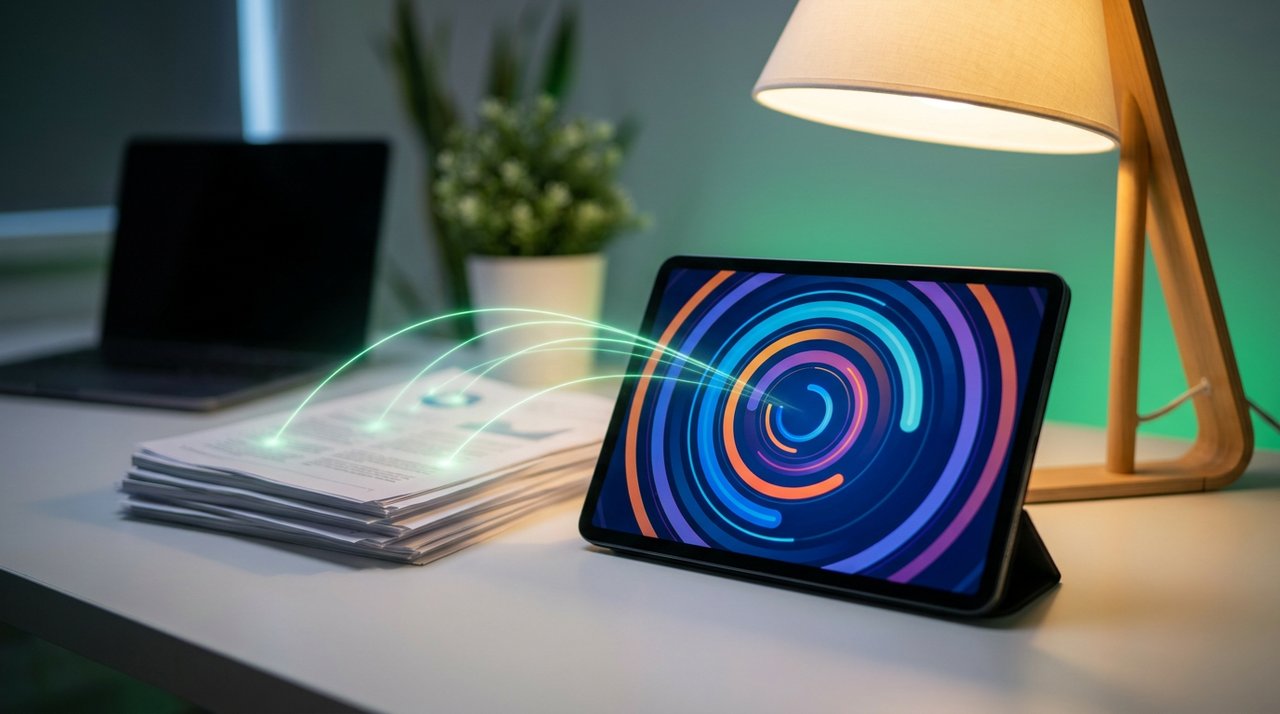
Your dense documents flow straight into a narrated, animated explainer.
Step 3: Choose Video Overview 🎥
In the Studio panel on the right, pick Video Overview. This is the big 2026 upgrade — earlier versions just gave you a basic slideshow with voiceover. The new Cinematic version is powered by Gemini 3, Nano Banana Pro and Veo 3 working together, so you get real animation, visuals and narration that actually feel produced.
You'll also spot Audio Overview nearby — that's the companion feature that turns your notes into an AI two-host podcast (you can even tap "Join" to ask the hosts questions). Handy, but today we're here for the video.
Step 4: Steer the Focus (Optional) 🎙️
Before you generate, you can give the AI a quick steer — what to emphasize and who it's for. This one line is the difference between a generic summary and a video built for your goal. Drop a prompt like this in the customization box:
"Explain this for a complete beginner studying for an exam. Focus on the key concepts and definitions, keep it simple, and use clear examples I can remember."
Swap that line for whatever you need — "summarize for a busy executive," "highlight the action items," or "make it punchy for social media." The video reshapes itself around your instruction.
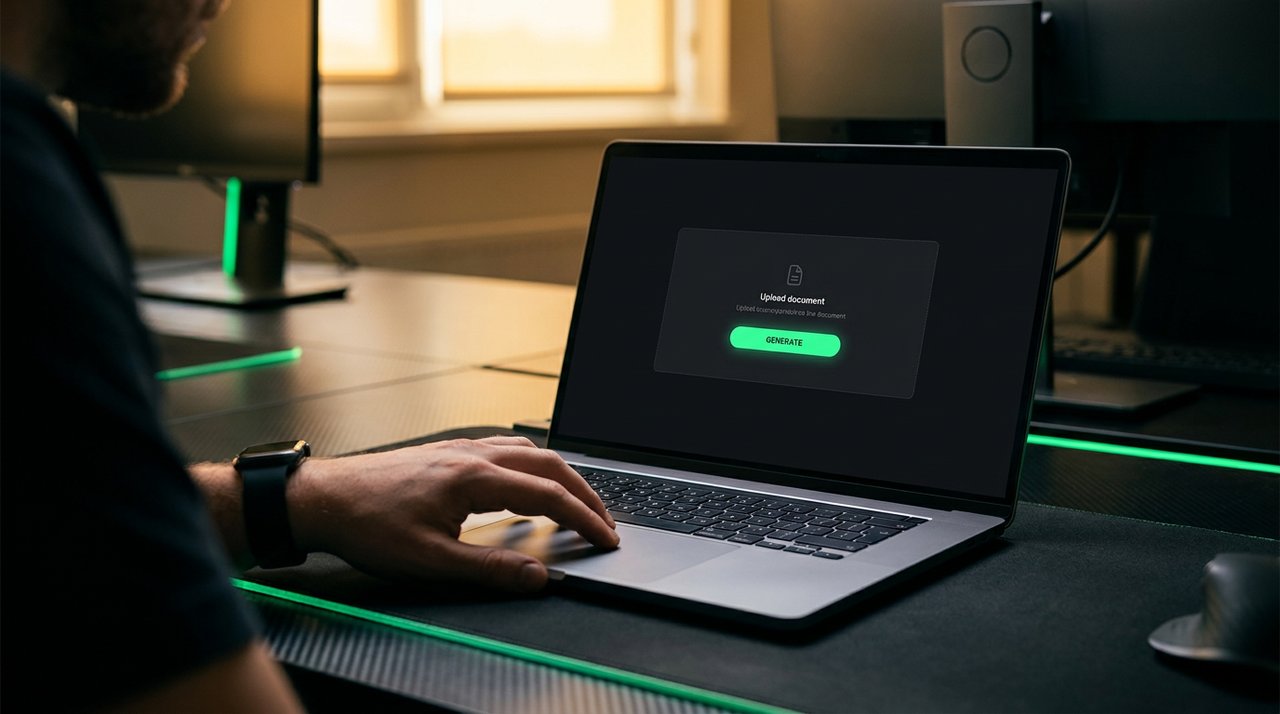
One generate button stands between your notes and a finished video.
Step 5: Generate & Watch ▶️
Hit Generate and step away for a few minutes — the AI is writing a script, building animated scenes, and recording narration all at once. When it's ready, press play. You'll get a narrated, animated explainer that walks through your material like a polished YouTube lesson, except it's about your exact content.
💡 Pro Tip: You get up to 20 generations per day — generous, but not infinite. Get your source and your steer right before you click, instead of burning runs on trial and error.
Step 6: Download or Share 📤
Love it? Download the video or share the link straight from NotebookLM. That's your finished explainer — ready to drop into a study playlist, send to a study group, or post online. From boring PDF to shareable video without ever opening an editor.
Use It, Make It Pay, Go Viral 💰
This one feature quietly unlocks three different wins:
- Use it (students): Turn a week of lecture notes into a revision video you can rewatch on the bus. Way stickier than rereading a wall of text.
- Make it pay (creators & pros): Repurpose a blog post or report into a short explainer video — or offer "PDF-to-video summaries" as a quick freelance service. People pay to not read 40 pages.
- Go viral: Take any trending article, generate a punchy 60-second breakdown, and post it. The 20/day cap actually makes these feel exclusive and share-worthy.
Key Takeaways
- NotebookLM's Cinematic Video Overview (March 2026, built on Gemini 3 + Nano Banana Pro + Veo 3) turns any document into a narrated, animated video.
- Workflow: create a notebook → upload sources → choose Video Overview → steer the focus → generate → download or share.
- Cleaner source files produce sharper, more accurate videos.
- A one-line instruction tailors the video to your audience and goal.
- You get 20 generations a day — plan each one instead of guessing.
Frequently Asked Questions
Is NotebookLM video really free?
Yes — you just need a free Google account. The Cinematic Video Overview is available at no cost, with a cap of around 20 generations per day. Paid Google plans may offer higher limits, but you can absolutely start at $0.
What files can I turn into a video?
PDFs, Google Docs, slides, pasted text and web links all work. The cleaner and more complete your source, the better and more accurate the resulting video.
How is this different from the old slideshow version?
The old Video Overview was basically narrated slides. The 2026 Cinematic version uses Gemini 3, Nano Banana Pro and Veo 3 to generate real animation and richer visuals, so it feels like a produced explainer rather than a slideshow.
Can I control what the video focuses on?
Yes. Before generating, add a short instruction telling NotebookLM what to emphasize and who the audience is — like "explain for a beginner" or "highlight the key takeaways." The video adapts to your steer.
Final Word
For years, turning a document into a watchable video meant scripts, editors and hours you didn't have. Now it's one upload and one button. Whether you're cramming for an exam, repurposing your content, or chasing a viral clip, this is one of the easiest superpowers you'll pick up in 2026. 🚀
Your turn — grab a PDF you've been ignoring and watch it become a movie.
📩 Want the freshest AI trends every week?
Subscribe to Tech4SSD — practical AI tools and trends, explained for everyone. Free. Subscribe →
AI tools and features change fast — verify current options before relying on them. — Tech4SSD Editorial